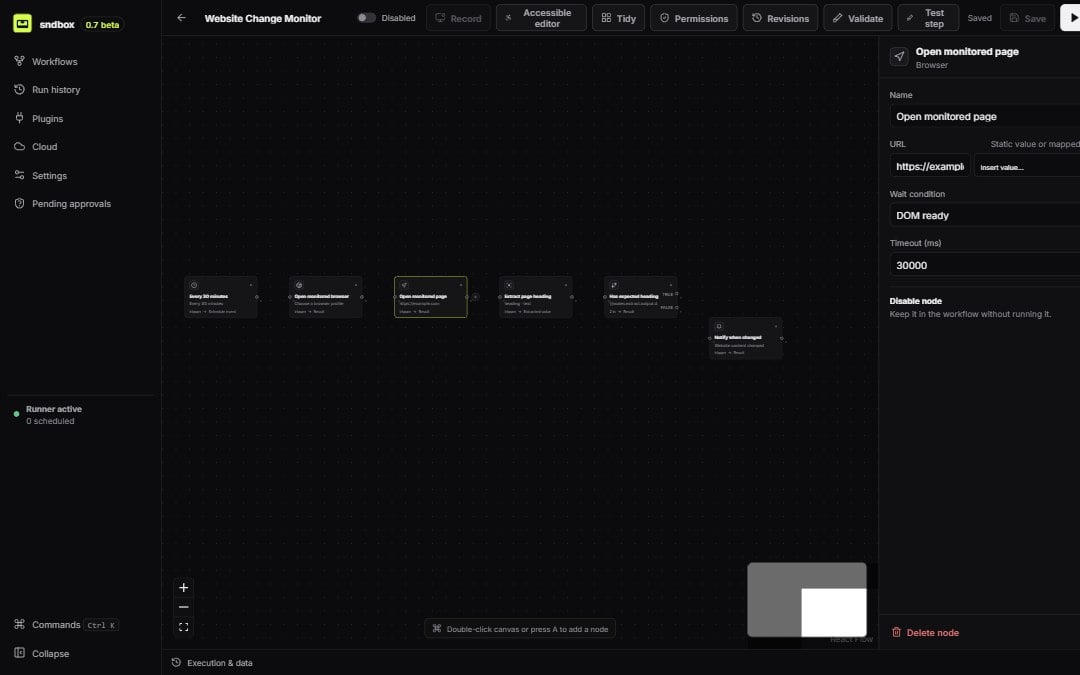
The workflow editor stores a typed graph: nodes hold configuration and input bindings, while edges define control flow. Visual proximity alone never passes data or changes execution order.
The sndbox workflow editor showing six implemented nodes and the settings inspector for a Navigate node

A real workflow graph with the Navigate node inspector open

Add and connect nodes

Open the node picker from the toolbar, canvas, or a node’s add control. Drag a control handle to a valid target. A Condition node exposes separate true and false source handles. Trigger nodes cannot be connection targets, and self or duplicate connections are rejected.

Configure the selected node

The right inspector is generated from the real node type. It exposes configuration, typed data bindings, locator testing, connection/profile selectors, and risk information only when the node implements those controls. The footer offers node testing and deletion; configured-node deletion can require confirmation according to Settings. Code nodes expose Edit code, which opens the full Python, HTML, JavaScript, and CSS editor with syntax highlighting, live diagnostics, a Problems panel, and AI-assisted authoring. See Code and Web Builder.

Draft with AI

Choose the sparkle button in the top toolbar to open AI builder. Describe a new workflow or a change to the current graph, review the complete proposal and validation issues, then apply it to the editor draft. The builder can create Code source blocks and their Web Builder mappings, but it never runs or approves the workflow. See Build workflows with AI.

Validate before execution

Validation reports the exact node, edge, or field path when possible. Select a validation row to focus the affected node. Errors block execution; warnings identify reviewable behavior without pretending a workflow is invalid.

Save and revisions

Content-changing saves create immutable revision records. Restore creates a new head revision rather than editing history. Cloud workspace drafts add approval and publication on top of the same revision identity.

Pointer-free editing

Select Accessible editor for named controls that add, move, connect, inspect, and remove graph elements without dragging. See Accessible editor.