> ## Documentation Index
> Fetch the complete documentation index at: https://docs.sndbox.app/llms.txt
> Use this file to discover all available pages before exploring further.
# Browser settings
> Inspect the managed Chromium engine and create isolated browser profiles.
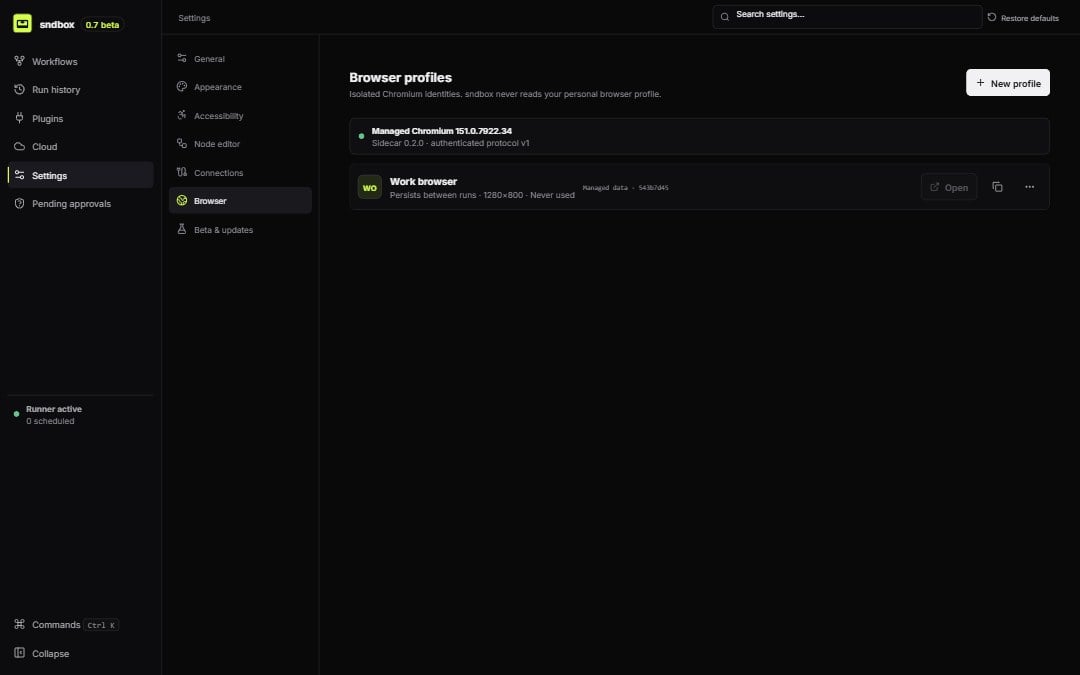 ## Engine
The health panel reports availability, protocol version, sidecar version, browser name/version, and startup error. Restart the engine from this page when the runtime is present but unhealthy.
## Profiles
Create, edit, duplicate, open, clear, or delete a profile. Each profile stores:
```ts theme={"system"}
interface BrowserProfileSettings {
viewportWidth: number;
viewportHeight: number;
downloadFolder?: string;
proxy?: string;
userAgent?: string;
permissions: string[];
}
```
Choose persistent storage when a workflow needs retained site state; choose ephemeral when every session should start clean. Use separate profiles for unrelated accounts or trust boundaries.
Deleting a profile can leave an Open Browser node without a valid `profileId`. Review affected workflows and choose a replacement before the next run.
## Engine
The health panel reports availability, protocol version, sidecar version, browser name/version, and startup error. Restart the engine from this page when the runtime is present but unhealthy.
## Profiles
Create, edit, duplicate, open, clear, or delete a profile. Each profile stores:
```ts theme={"system"}
interface BrowserProfileSettings {
viewportWidth: number;
viewportHeight: number;
downloadFolder?: string;
proxy?: string;
userAgent?: string;
permissions: string[];
}
```
Choose persistent storage when a workflow needs retained site state; choose ephemeral when every session should start clean. Use separate profiles for unrelated accounts or trust boundaries.
Deleting a profile can leave an Open Browser node without a valid `profileId`. Review affected workflows and choose a replacement before the next run.